Welcome STARK TOUCH DEVICE!


Solutions
Professional operation precautions for industrial control computer maintenance
Professional Precautions for Industrial Control Computer Maintenance
Industrial control computers (ICCs) are critical components in industrial automation systems, responsible for real-time data processing, equipment control, and monitoring. Due to their continuous operation in harsh environments, ICCs are prone to various failures. Proper maintenance is essential to ensure their reliability and stability. This article outlines key precautions for professional ICC maintenance.
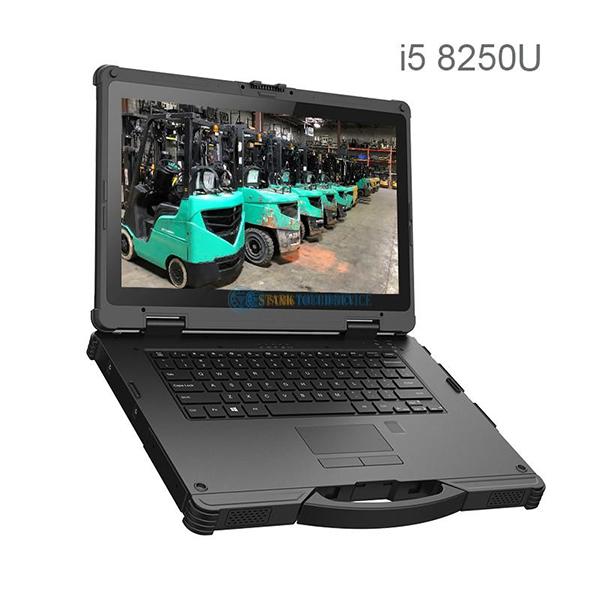
Pre-Maintenance Preparation and Safety Measures
Personal Protective Equipment (PPE) and Work Environment
Before starting maintenance, operators must wear appropriate PPE, including anti-static wristbands, gloves, and safety goggles. Anti-static wristbands should be properly grounded to prevent electrostatic discharge (ESD), which can damage sensitive electronic components. The work environment should be clean, dry, and well-ventilated, with stable power supply and proper grounding to avoid electrical hazards.
Equipment Inspection and Data Backup
Inspect the ICC for visible physical damage, such as cracks, burns, or loose connections. Check all cables and connectors for proper insertion and integrity. Before any internal maintenance, back up critical data to prevent loss during repairs. Inform users about potential data risks and obtain their consent before proceeding.
Tool Selection and Preparation
Use specialized tools designed for electronic maintenance, such as anti-static screwdrivers, tweezers, and multimeters. Ensure tools are in good condition and properly calibrated. Avoid using metal tools near sensitive components to prevent short circuits.
Common Fault Diagnosis and Repair Procedures
Power Supply Issues
Symptoms: The ICC fails to power on, or the power indicator flickers.
Diagnosis: Check the power cord and socket for proper connection. Use a multimeter to test the power output voltage and current. If the power supply is faulty, replace it with a compatible unit.
Precautions: When replacing the power supply, ensure the ICC is completely powered off and disconnected from the mains. Follow the manufacturer’s instructions for proper installation.
Memory (RAM) Failures
Symptoms: The ICC fails to boot, displays blue screens, or experiences frequent crashes.
Diagnosis: Remove and reinsert the memory modules to ensure proper contact. Test each module individually using a memory diagnostic tool. Replace any faulty modules with compatible ones.
Precautions: Handle memory modules by their edges to avoid touching the gold contacts. Store modules in anti-static packaging when not in use.
Hard Drive Problems
Symptoms: The ICC fails to boot, displays disk errors, or operates slowly.
Diagnosis: Check the hard drive’s data and power cables for proper connection. Use disk diagnostic software to scan for bad sectors or file system errors. If the drive is faulty, replace it and restore data from backups.
Precautions: When handling hard drives, avoid static discharge and physical shocks. Store drives in a cool, dry place to prevent data corruption.
Graphics Card Issues
Symptoms: The display is distorted, flickers, or fails to show an image.
Diagnosis: Check the graphics card’s connection to the motherboard and display. Ensure the card is properly seated and the cooling fan is functioning. Test the card in another ICC if possible to isolate the issue.
Precautions: When installing or removing graphics cards, apply even pressure to avoid damaging the PCIe slot. Clean the card’s contacts with isopropyl alcohol if necessary.
Post-Maintenance Testing and Validation
Functional Testing
After repairing or replacing components, perform a comprehensive functional test to verify the ICC’s operation. Check the boot process, hardware recognition, and system stability. Run diagnostic software to monitor temperatures, voltages, and fan speeds.
Environmental Validation
Ensure the ICC operates within specified environmental conditions, such as temperature and humidity ranges. Check for proper airflow and cooling to prevent overheating. Verify that the ICC is protected from dust, moisture, and vibrations.
Documentation and Record-Keeping
Document all maintenance activities, including fault symptoms, diagnostic steps, repairs performed, and test results. Maintain a log of replaced components and their serial numbers. This documentation helps track the ICC’s maintenance history and aids in future troubleshooting.
Advanced Maintenance Considerations
Firmware and BIOS Updates
Regularly check for firmware and BIOS updates from the manufacturer. These updates often include bug fixes, security patches, and performance improvements. Follow the manufacturer’s instructions carefully when updating firmware to avoid bricking the ICC.
Component Compatibility
When replacing components, ensure compatibility with the ICC’s motherboard and other hardware. Mismatched components can cause instability or failure. Consult the manufacturer’s documentation or support team for guidance on compatible replacements.
Preventive Maintenance Schedule
Implement a preventive maintenance schedule to proactively address potential issues before they cause failures. This includes regular cleaning, component inspections, and firmware updates. A well-maintained ICC is less likely to experience unexpected downtime.